
High-quality visuals help your business stand out and build trust. Whether you’re uploading a logo or showcasing your workspace, the right images make a big impact.
In this article
Why visuals matter on Net Circle
Photos are often the first thing a potential client sees on your listing. Clean, well-sized images can highlight your professionalism and help users understand what you offer at a glance.
Types of images you can add
You can upload a variety of images to personalize and enhance your business listing:
- Business logo
- Featured image (banner)
- Gallery/Slider images
- Team or staff photos
- Office or workspace photos
Recommended image sizes and formats
| Image Type | Recommended Size | Format | Tips |
|---|---|---|---|
| Business Logo | 500 x 500 px (square) | PNG, JPG | Use a centered, transparent logo if possible |
| Featured Image | 1200 x 600 px | JPG, PNG | Use a clear and professional banner |
| Gallery/Slider Images | 1200 x 800 px | JPG, PNG | Showcase services, office, or team |
| Team/Staff Photos | 600 x 800 px (portrait) | JPG | Use headshots with a clean background |
| Office/Workspace Photos | 1200 x 800 px | JPG | Clean, natural lighting, no filters |
How to upload your images

Log in to your Net Circle dashboard.
Click on Listings and select the listing you want to edit.
Under Listing Editor, go to Images & Video.
Click on Upload Slider Images.
Click Upload Files and choose the images you want to add.
For each image, add Alt Text to improve SEO.
Upload them one by one to ensure proper placement.
- Open your browser and log in to Net Circle.
- Tap the menu icon → Listings → Select your listing.
- Under Listing Editor, go to Images & Video.
- Click on Upload Slider Images.
- Click Upload Files and choose the images you want to add.
- For each image, add Alt Text to improve SEO.
- Upload them one by one to ensure proper placement.
How to set a featured image
Log in to your Net Circle dashboard.
Click on Listings and select the listing you want to edit.
Under Listing Editor, go to Images & Video.
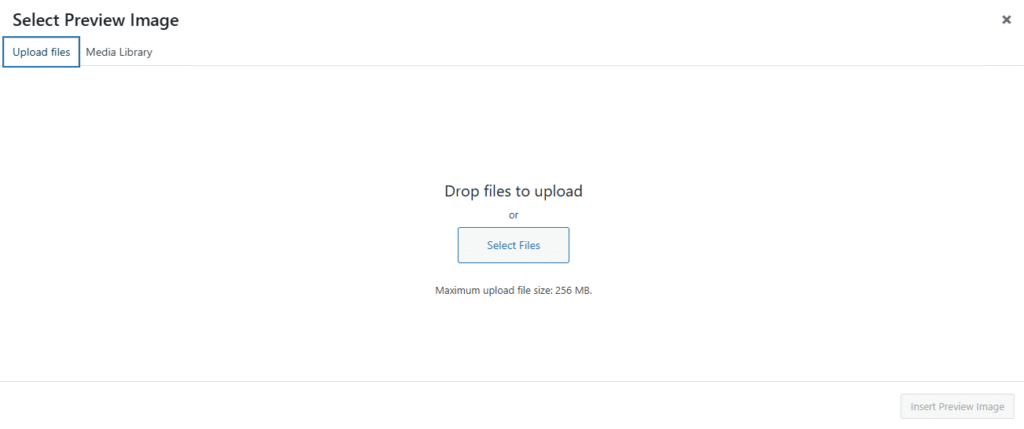
Click on Upload Preview Image.
Click Upload Files and choose the images you want to add.
- Click on Insert Preview Image
Add Alt Text to improve SEO.
Upload them one by one to ensure proper placement.
Common mistakes to avoid
- Uploading blurry or pixelated images
- Using oversized files (keep each image under 1MB)
- Adding too much text or logos to gallery photos
- Forgetting to set a featured image
- Leaving out team or workspace visuals
💡 Final Tip: Need help resizing or choosing the best images? Use free tools like Canva or Adobe Express to quickly create perfectly-sized visuals for your Net Circle listing.






Leave a Reply